|
Home > Welcome > AI-Based Coaching > Athlete Training Context
Athlete Training Context
To view this screen make the [Settings]->[Athlete Training Context] from the main menu
The Athlete Training Context Settings screen is the operational heart of KOMInformatics planning. It captures the athlete’s current phase, event goals, daily health, equipment, and weekly structure, giving CG (the KOMInformatics AI) the contextual intelligence needed to generate precise, individualized guidance. Every field on this screen shapes how the system interprets the athlete’s readiness and intentions,ensuring that training recommendations are always grounded in real‑world context rather than generic assumptions.
A defining feature of this screen is its role in versioning the Training Plan. The selected Training Phase—Base, Build, Peak, Taper, Race, Recovery, and the choice between regular load and light load—directly determines the weekly training load target. When an athlete switches between regular and light load, they are signaling a change in macro‑intent. KOMInformatics responds by generating a new version of that week’s Training Plan, recalculating the weekly load target to reflect the updated phase. This preserves the integrity of the periodization model and maintains a clear audit trail of why the week’s load changed.
Daily health inputs such as fatigue rating, sleep duration, sleep quality, and any current issues provide CG with real‑time readiness context. These values allow the system to adjust workload guidance, flag caution, and shape recovery recommendations based on the athlete’s actual condition rather than an assumed baseline. Equipment and environment selections—bike type, indoor vs. outdoor training—further refine interval design and environmental adaptation, acknowledging that these factors can change day‑to‑day.
The Weekly Training Blueprint is where athletes define the structure of their training week: available hours, primary and secondary focus for each day, and the predictable anchor points that shape the rhythm of training. Any change to Blueprint values—hours, focus, or pinned rides—triggers the creation of a new version of the Training Plan, redistributing the fixed weekly load according to the updated structure. This ensures the plan always reflects the athlete’s real schedule while preserving the logic of the weekly load target.
Pinned Rides play a crucial dual role within the Blueprint. First, they tell CG what sort of work is likely to occur on specific days, giving him informed context for shaping recommendations across the rest of the week. Second, they provide the TrainingPlanner with relatively precise anchors around which the rest of the week can be constructed. This allows athletes to preserve the character of their week—such as a standing group ride—while still benefiting from adaptive planning.
Warmup/Cooldown controls further refine CG’s workout construction, letting him know how to shape the opening and closing segments of Adaptive Workouts. Custom Notes add another layer of nuance, allowing athletes to specify ad‑hoc constraints or intentions—such as avoiding intensity or emphasizing cadence—which CG incorporates into his recommendations when relevant.
Together, these elements make the Athlete Training Context Settings screen the central interface between athlete intent and system intelligence. It is where the athlete defines the reality of their training life, and where KOMInformatics transforms that reality into structured, adaptive, and context‑aware guidance.
To use this screen make your desired selections from the dropdown lists and/or typein the disred values into the textboxes. When you are finished, click the [Save] buttoin on the bottom right of the screen. 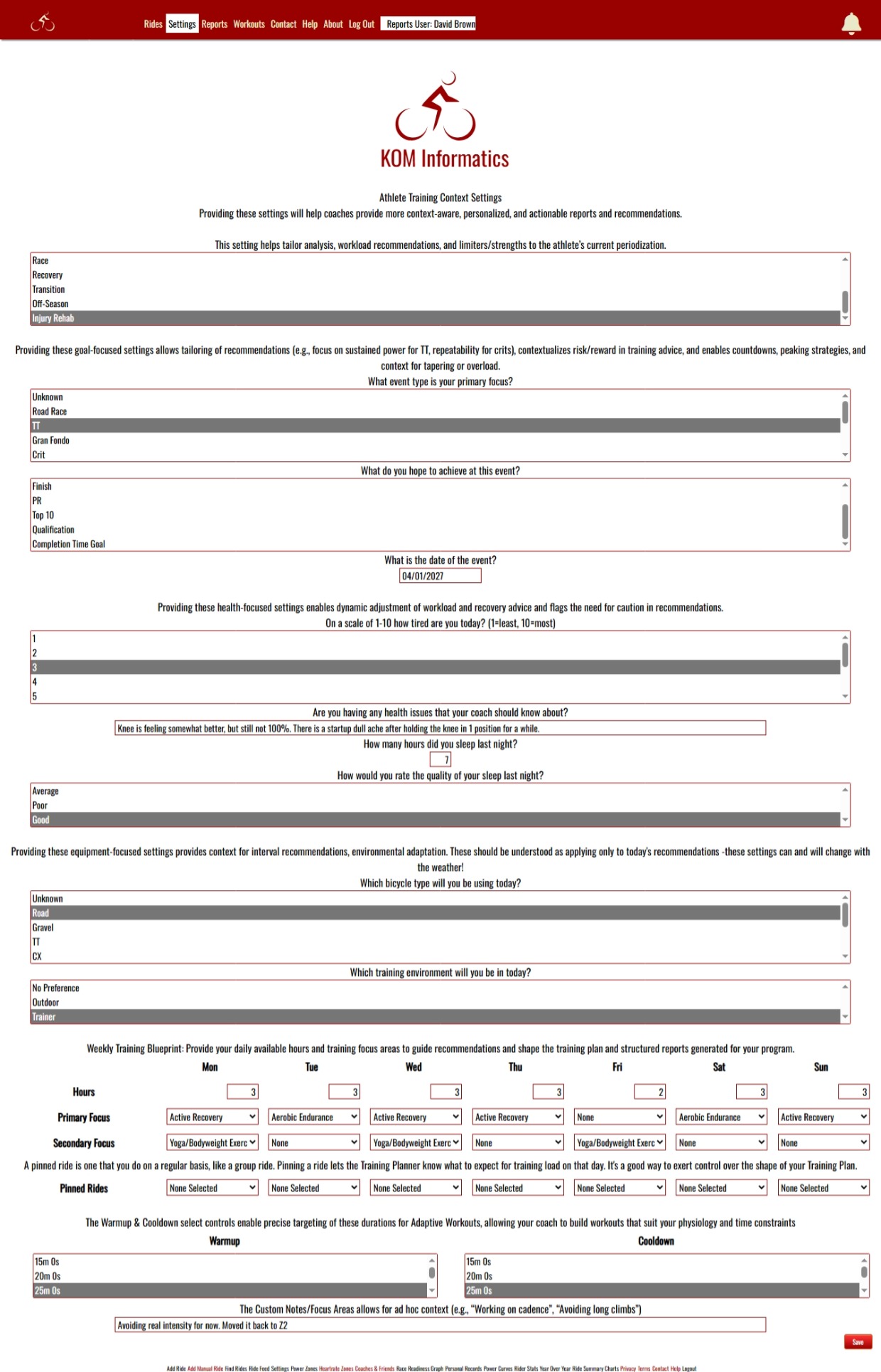
See also
| 


